 ÆthelHook
Remote control for six AI coding agents, from Claude Code to Devin CLI
Your AI coding agent can run any command it wants, right now.
One click through a permission dialog you stopped reading, and it just did something you did not mean to allow. ÆthelHook gives you remote control over six different coding agents, routing every risky action to your phone first. You decide, not a popup you clicked past.
Windows PC and Android phone required. No account, no subscription.
Works with Claude Code (CLI and VS Code extension), Codex (CLI and IDE), OpenCode, Gemini CLI, GitHub Copilot CLI, and Devin's standalone terminal CLI. Not the regular Claude app or claude.ai.

AI coding agents can execute shell commands, overwrite files, and install packages on their own. Most IDEs show a quick allow or deny popup on the same screen you are already working in, which is easy to click through on autopilot. ÆthelHook forces that decision onto a second device, so approving something dangerous takes a deliberate action, not a reflex.
But ÆthelHook is not only about safety. It is about freedom to step away from your desk without stepping away from your work.
Walk away and stay in control
Kick off a task, then actually leave. Step out of the office, run to the store, grab coffee. As long as your phone has a signal, over Tailscale or plain mobile data, you are still in the loop. Need to approve a command? You get a notification. Curious if the agent finished? You get a notification for that too.
Talk to your agent from your pocket
Session Access lets you send a brand new prompt straight from your phone, not just answer approval requests. Forgot to ask it to also update the docs? Tell it from the checkout line. Need a quick fix while you are out? Prompt it right there and let your PC pick it up and get to work.
Built for multitaskers
Deep in three other windows and do not want to alt-tab back to your IDE just to click Allow? Let the notification on your phone handle it instead. Less context switching, less friction, more time spent actually working.
What it does
Remote control and approval for six coding agents, one gateway, and a phone in your pocket.
Works with six coding agents
Claude Code (CLI and VS Code extension), Codex (CLI and IDE), OpenCode, Gemini CLI, GitHub Copilot CLI, and Devin's standalone terminal CLI (not the Devin IDE, which has no hook mechanism at all). Not the regular Claude app or claude.ai, those are a different product. Most of these need a one-time extra setup step, see the setup guide below for exact instructions per agent.
Real time, end to end encrypted
Approvals travel over a TLS connection with certificate pinning. No cloud relay and no third party push service sits in the middle.
Five ways to answer
Allow once, always allow for this project, always allow everywhere, deny, or deny with a reason fed back to the agent.
Plans and questions too
Claude Code's plan review and clarifying questions are answered from your phone, not just tool calls.
Session Access
Remote control your agent: send a prompt from your phone, by typing or by voice, and kick off a headless run on your PC. Each project keeps its own resumable conversation, with a live context-usage gauge per agent. Works for every agent except GitHub Copilot CLI, which is approval-gate only.
Secure by default
Pairing a new device needs Windows Hello on the PC, not just a QR scan. Every device gets its own token, only one is ever active, and nothing is stored in plain text.
Hidden until you unlock them
Your LAN IP, Tailscale IP, and API token are masked in the app by default. Reveal them with your fingerprint, face, PIN, or password.
Stay connected on the go
Works over the same Wi-Fi, or over Tailscale when your phone is on mobile data and your PC is somewhere else entirely. Leaving your desk does not mean losing control of your agent.
Reconnects on its own
The background service starts automatically when your PC boots, and keeps running through sleep and wake. Your phone finds it again on its own, over the same Wi-Fi or over Tailscale, no need to reopen anything.
Fewer trips back to your IDE
Approve, deny, or answer a question straight from a phone notification. No alt-tabbing away from whatever else you are working on just to click a button.
See it in action
A quick look at the phone app and the tray app.
Phone dashboard
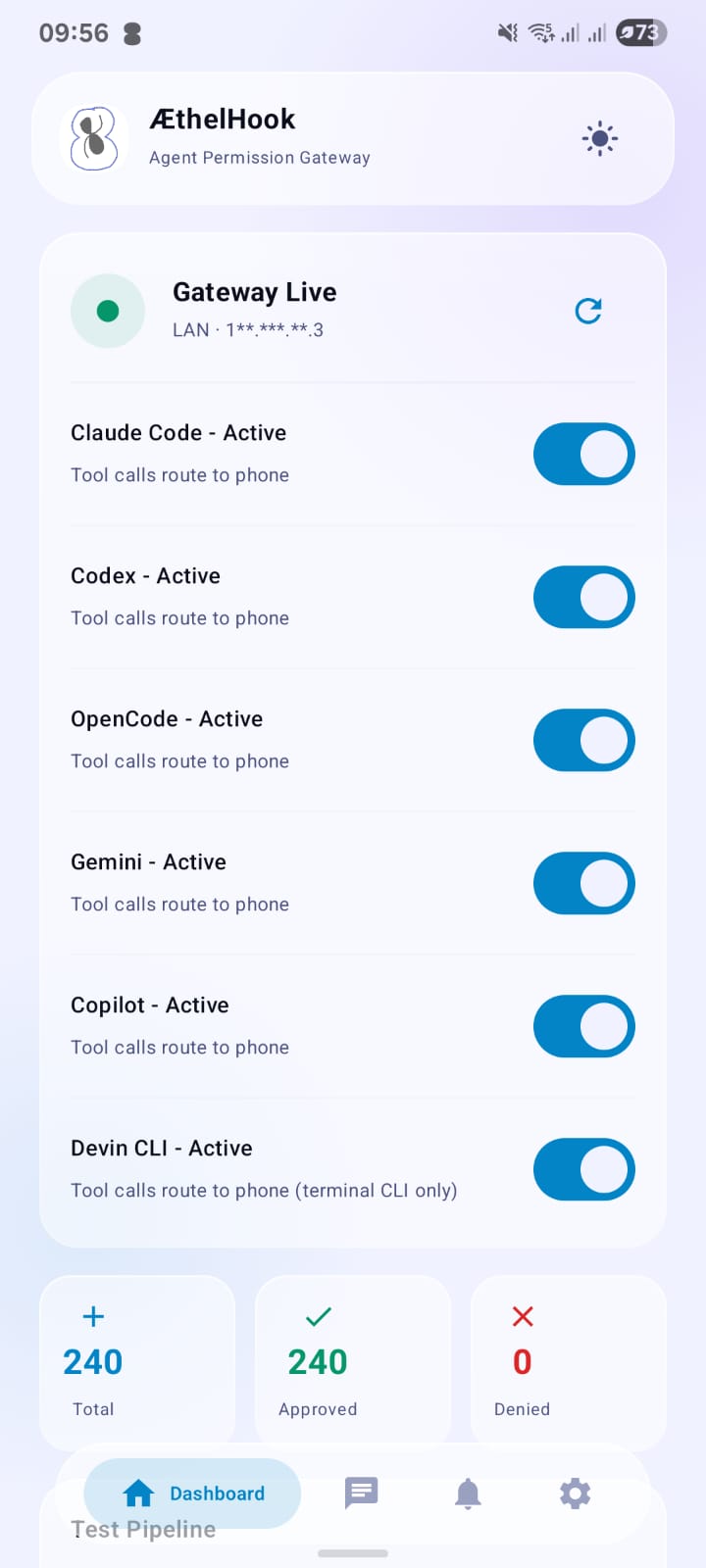
The Dashboard tab: gateway status, a toggle per agent, and a running approval count.
Windows tray app
Pairing a new device, gated behind Windows Hello, and the live approval feed.
Phone in action
Answering a real approval request, straight from the phone.
Setup
Seven steps, most of them one click.
- 1
Download the installer and the app
Grab the Windows installer and get the Android app from Google Play, both in the download section below.
- 2
Install Tailscale on both devices (optional, recommended)
If you want approvals to keep working when your phone is on mobile data, not just the same Wi-Fi as your PC, install Tailscale on both. It is free for personal use. See the Connect section below for the full setup steps. Skip this if you only ever need approvals while your phone and PC share a network.
- 3
Run the installer on your PC
Run AethelHook-Setup.exe as Administrator. It installs a background service and the tray app, then opens the tray app automatically.
- 4
Find the AethelHook tray app
Look for the ÆthelHook icon in your Windows system tray, the row of small icons near the clock in the bottom right of your screen. If you do not see it right away, click the small up arrow (^) to show hidden icons. Left click the icon to open the app.
- 5
Install the app on your phone
Install ÆthelHook from Google Play like any other app.
- 6
Pair your phone with your PC
In the tray app window, click Pair New Device. Windows Hello asks you to confirm with your PIN, fingerprint, or face, then shows a QR code. Open the app on your phone, go to Settings, and tap Scan QR to Pair, then scan the code from the tray window.
- 7
You are done
From now on, tool calls, plan reviews, and clarifying questions from whichever of the six supported agents you use are routed to your phone for a decision.
Windows Hello guards every new pairing
Only one phone can hold the live connection at a time, and adding a new one takes more than just scanning a QR code.
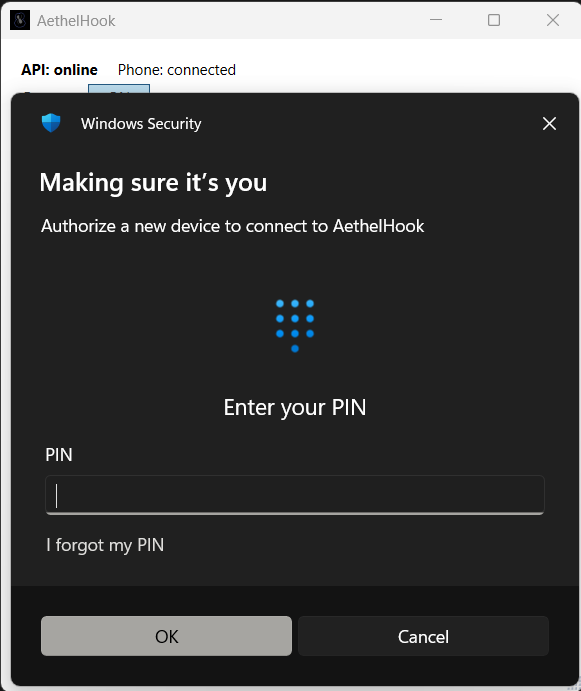
Clicking Pair New Device in the tray app now opens this Windows Hello prompt before the QR code ever appears. Confirm with your PIN, fingerprint, or face, the same check Windows already uses to unlock your PC.
Staying connected
Three ways your phone and PC can reach each other.
Same Wi-Fi
Phone and PC on the same Wi-Fi network. No Tailscale needed, this works automatically once you have paired.
Phone on mobile data, PC on Wi-Fi
You are out and about with your phone on mobile data, while your PC stays on its normal Wi-Fi or ethernet. Install and run Tailscale on both devices.
Phone on mobile data, PC on your phone's hotspot
Your PC is tethered to your phone's own mobile hotspot. Install and run Tailscale on both devices here too, for a reliable connection.
Setting up Tailscale
- 1
Install Tailscale on both devices
Download it from the Tailscale card below for your PC, and from your phone's app store for Android.
- 2
Sign in with the same account on both
Tailscale needs both devices signed into the same account so they can see each other.
- 3
Turn off Use Tailscale DNS on your phone
In the Tailscale app on your phone, open its settings and disable Use Tailscale DNS.
- 4
Find your PC's Tailscale IP
Open the Tailscale app on your PC. It shows this PC's own Tailscale IP address, something like 100.x.x.x. Copy it.
- 5
Enter it in the ÆthelHook app
On your phone, open ÆthelHook, go to Settings, and paste the IP into the Tailscale IP field. Tap Save Settings.
Troubleshooting
Four PowerShell commands to check and control the AethelHook service. Also available with one-click copy from the Tray app's "PowerShell Commands" button.
Check if it is running
Get-Service AethelHookUse this to see if the service is Running or Stopped.
Start it
Start-Service AethelHookUse this if the service did not start on its own.
Stop it
Stop-Service AethelHookUse this to turn the gateway off.
Restart it
Restart-Service AethelHookUse this if the service is running but not responding.
What people are saying
Real feedback from people trying AethelHook out.
“That QR code pairing with Windows Hello is a nice touch, actually makes the remote access feel secure instead of just open to anyone on the network.”
“The Windows Hello and WinRT part sounds like it was almost harder than the original idea. Those are the kinds of implementation details people never see, but usually end up taking 80% of the development time. Respect for sticking with it.”
Download
Both installs are free, and the full source is public on GitHub.
Windows
Installs the background service and the tray app.
Download for WindowsAndroid
Now available on Google Play.
Get it on Google PlayTailscale
Optional, keeps approvals working over mobile data.
Download Tailscale